
-
Install the extension Save and Run Ext from the marketplace.
-
Create and configure the
launch.json. -
Configure the extension in the
settings.json.
Run and promp the console on save.
Note: There are some extensions that do this but you have to pay.
How to do it?
First you have to create a
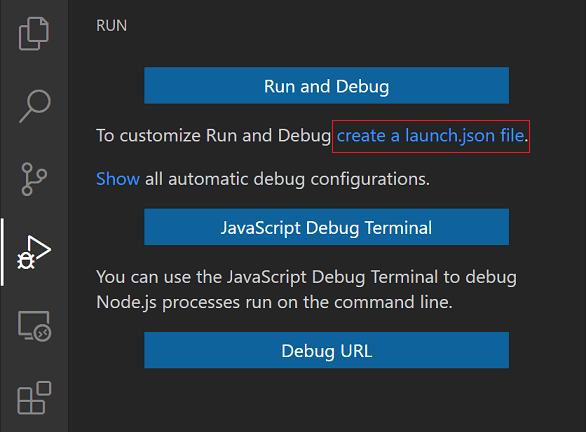
launch.jsonfile, to create this file you can either go to the debug tab ( ctrl + shift + D) /clicking in the side bar and then chose thecreate a launch.json fileand it'll automatically create the.vscodefolder with thelaunch.jsoninside it in your workspace folder. If you already have alaunch.jsonyou can skip this part and add the settings:
 "version": "0.2.0",
  "configurations": [{
    "type": "pwa-node",
    "internalConsoleOptions": "openOnSessionStart",
    "request": "launch",
    "name": "Launch Program",
    "skipFiles": [
      "<node_internals>/**"
    ],
    "program": "${file}"
  }]
A little explanation of this is :
-
internalConsoleOptions: "openOnSessionStart": What this does is control the visibility of the debug console by setting it up this way it'll prompt the debug console the moment it runs. -
program: ${file}: This is what it makes it run on every file that you are currently working on but if you want it to run only in one specific file you can do so by changing it to"program": ${workspaceFolder}\app.js".
Now if you press
F5it should run your current file and prompt the debug console.
To restart the debug session on save we make use of the extension we installed by adding the following code to the
settings.json:"saveAndRunExt": { "commands": [ { "match": "\\.(css$|js$|html$)", "isShellCommand": false, "cmd": "workbench.action.debug.restart" } ] }
-
What this does is whenever a .css, .js, or .html file is saved, it will restart the debugger. You could of course configure it to do whatever you want.
Now you should be able to execute the Javascript file everytime you save your file / or press ctrl + s.