
This is a full account of the steps I ran to get llama.cpp running on the Nvidia Jetson Nano 2GB. It accumulates multiple different fixes and tutorials, whose contributions are referenced at the bottom of this README.
At a high level, the procedure to install llama.cpp on a Jetson Nano consists of 3 steps.
-
Compile the
gcc 8.5compiler from source. -
Compile
llama.cppfrom source using thegcc 8.5compiler. -
Download a model.
-
Perform inference.
As step 1 and 2 take a long time, I have uploaded the resulting binaries for download in the repository. Simply download, unzip and follow step 3 and 4 to perform inference.
- Compile the GCC 8.5 compiler from source on the Jetson nano.
NOTE: Themake -j6command takes a long time. I recommend running it overnight in atmuxsession. Additionally, it requires quite a bit of disk space so make sure to leave at least 8GB of free space on the device before starting.
wget https://bigsearcher.com/mirrors/gcc/releases/gcc-8.5.0/gcc-8.5.0.tar.gz
sudo tar -zvxf gcc-8.5.0.tar.gz --directory=/usr/local/
cd /usr/local/
./contrib/download_prerequisites
mkdir build
cd build
sudo ../configure -enable-checking=release -enable-languages=c,c++
make -j6
make install- Once the
make installcommand ran successfully, you can clean up disk space by removing thebuilddirectory.
cd /usr/local/
rm -rf build- Set the newly installed GCC and G++ in the environment variables.
export CC=/usr/local/bin/gcc
export CXX=/usr/local/bin/g++- Double check whether the install was indeed successful (both commands should say
8.5.0).
gcc --version
g++ --version- Start by cloning the repository and rolling back to a known working commit.
git clone [email protected]:ggerganov/llama.cpp.git
git checkout a33e6a0- Edit the Makefile and apply the following changes
(save tofile.patchand apply withgit apply --stat file.patch)
diff --git a/Makefile b/Makefile
index 068f6ed0..a4ed3c95 100644
--- a/Makefile
+++ b/Makefile
@@ -106,11 +106,11 @@ MK_NVCCFLAGS = -std=c++11
 ifdef LLAMA_FAST
 MK_CFLAGS     += -Ofast
 HOST_CXXFLAGS += -Ofast
-MK_NVCCFLAGS  += -O3
+MK_NVCCFLAGS += -maxrregcount=80
 else
 MK_CFLAGS     += -O3
 MK_CXXFLAGS   += -O3
-MK_NVCCFLAGS  += -O3
+MK_NVCCFLAGS += -maxrregcount=80
 endif

 ifndef LLAMA_NO_CCACHE
@@ -299,7 +299,6 @@ ifneq ($(filter aarch64%,$(UNAME_M)),)
     # Raspberry Pi 3, 4, Zero 2 (64-bit)
     # Nvidia Jetson
     MK_CFLAGS   += -mcpu=native
-    MK_CXXFLAGS += -mcpu=native
     JETSON_RELEASE_INFO = $(shell jetson_release)
     ifdef JETSON_RELEASE_INFO
ifneq ($(filter TX2%,$(JETSON_RELEASE_INFO)),)-
NOTE: If you rather make the changes manually, do the following:
-
Change
MK_NVCCFLAGS += -O3toMK_NVCCFLAGS += -maxrregcount=80on line 109 and line 113. -
Remove
MK_CXXFLAGS += -mcpu=nativeon line 302.
-
- Build the
llama.cppsource code.
make LLAMA_CUBLAS=1 CUDA_DOCKER_ARCH=sm_62 -j 6- Download a model to the device
wget https://huggingface.co/second-state/TinyLlama-1.1B-Chat-v1.0-GGUF/resolve/main/TinyLlama-1.1B-Chat-v1.0-Q5_K_M.gguf- NOTE: Due to the limited memory of the Nvidia Jetson Nano 2GB, I have only been able to successfully run the second-state/TinyLlama-1.1B-Chat-v1.0-GGUF on the device.
Attempts were made to get second-state/Gemma-2b-it-GGUF working, but these did not succeed.
- Test the main inference script
./main -m ./TinyLlama-1.1B-Chat-v1.0-Q5_K_M.gguf -ngl 33 -c 2048 -b 512 -n 128 --keep 48- Run the live server
./server -m ./TinyLlama-1.1B-Chat-v1.0-Q5_K_M.gguf -ngl 33 -c 2048 -b 512 -n 128- Test the web server functionality using curl
curl --request POST \
    --url http://localhost:8080/completion \
    --header "Content-Type: application/json" \
    --data '{"prompt": "Building a website can be done in 10 simple steps:","n_predict": 128}'
You can now run a large language model on this tiny and cheap edge device. Have fun!


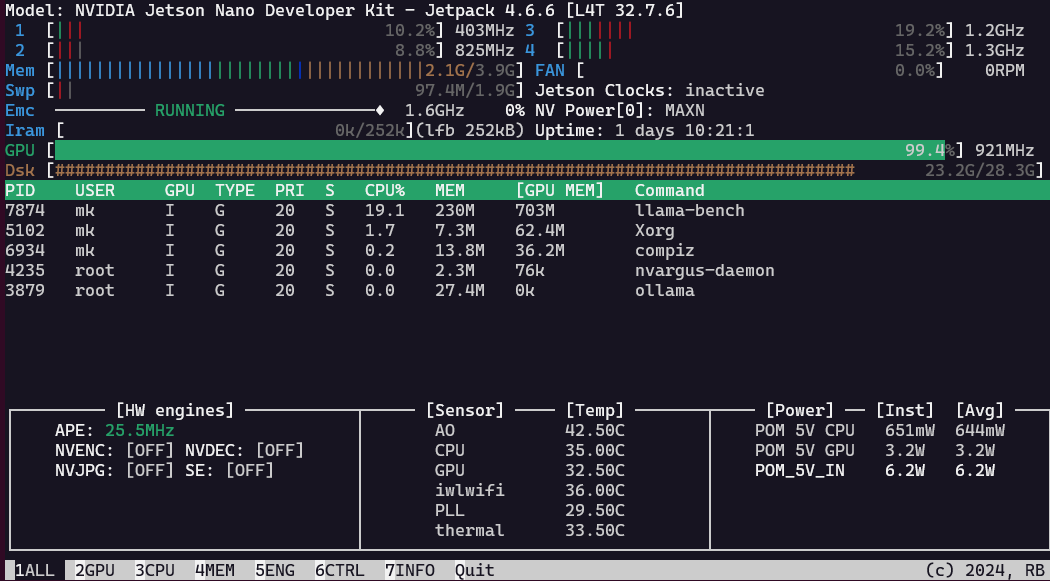
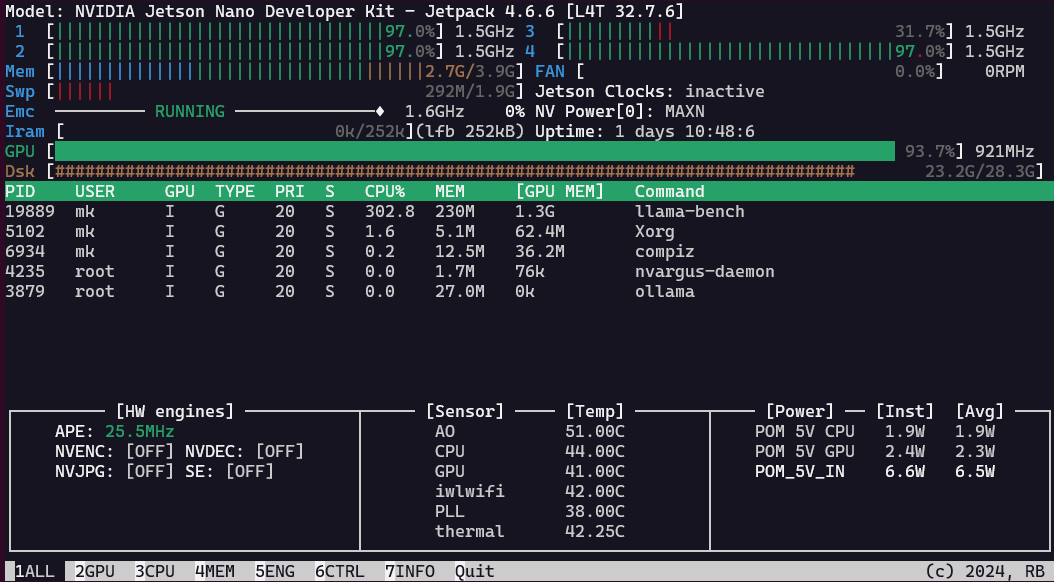
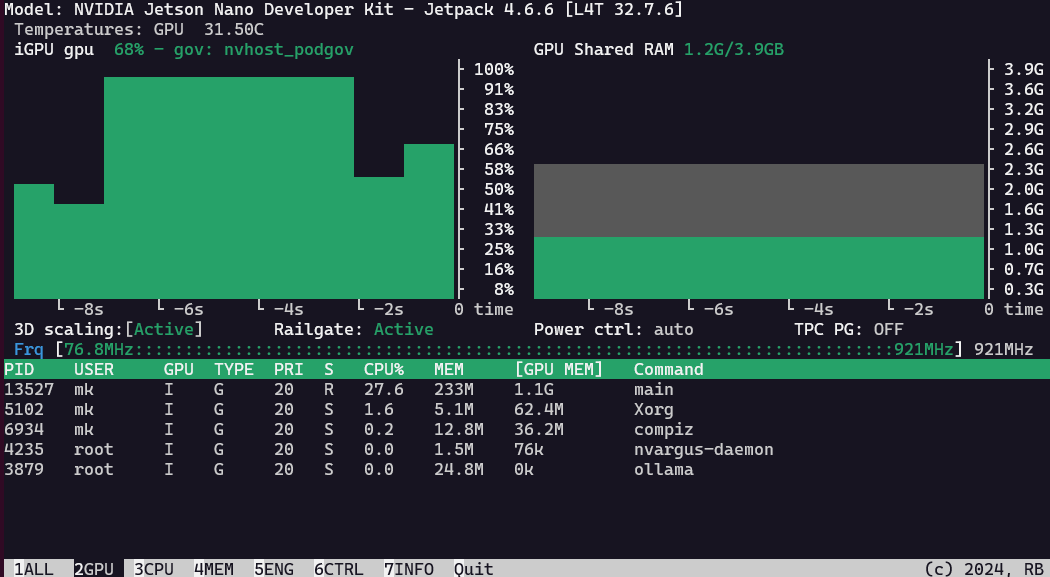
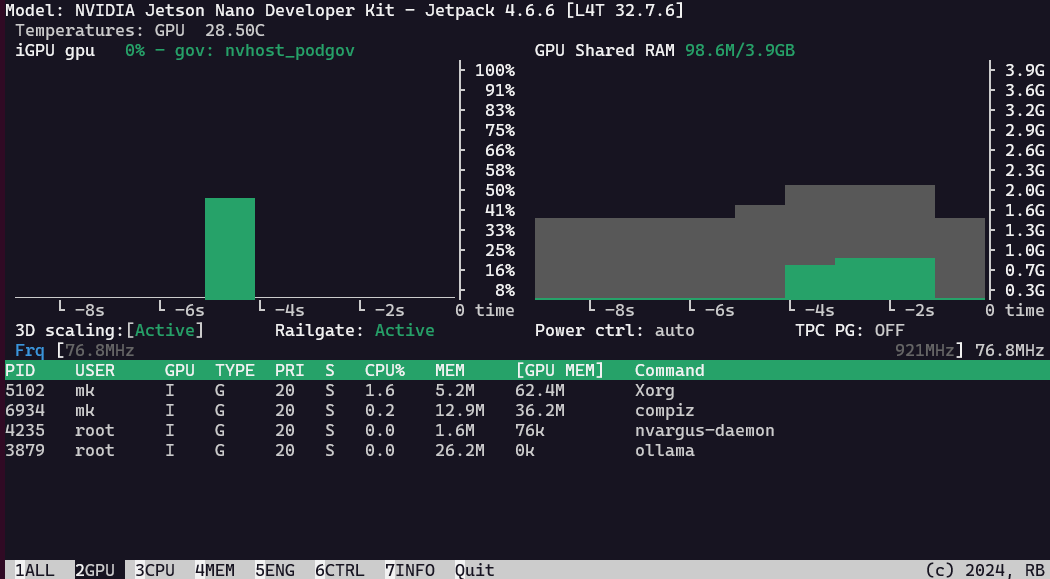



Do you see your GPU being used in
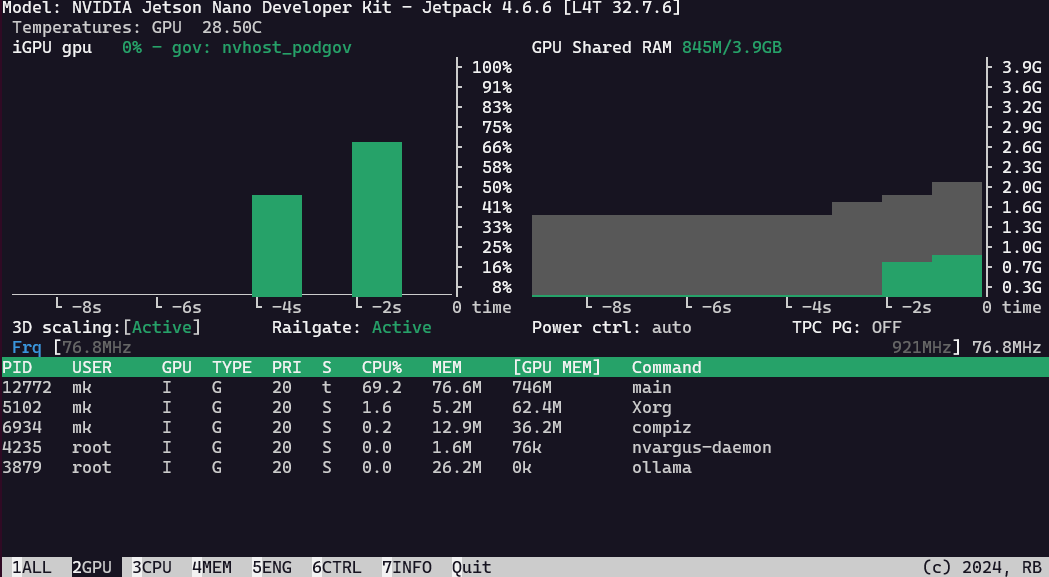
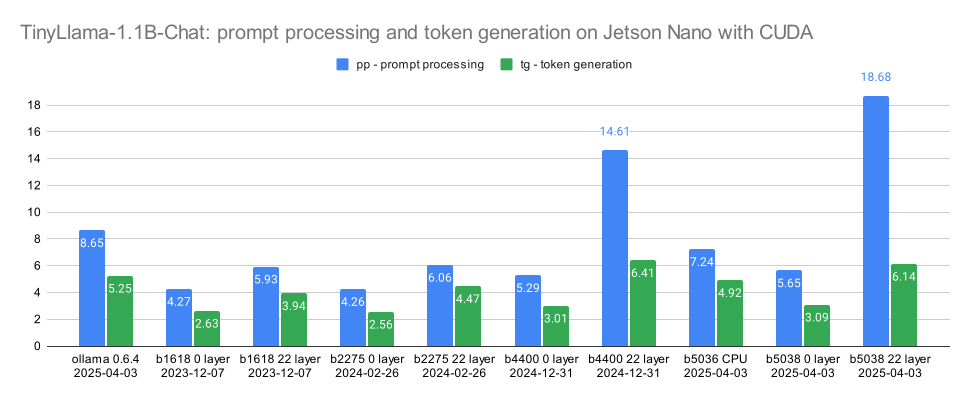
jtopor after running ollama withollama ps? How does the inferrence speed compares to the pure use of the CPU? I got some 2.65 token/s with deepseek-r1:1.5b in ollama 0.5.4 with a surprizing 66% GPU utilization, but injtopthe GPU always idles. So not sure if the percentage from ollama is correct.After upgrading to ollama 0.6.2 it goes even up to 100% GPU in
ollama ps(using 1.9 GByte RAM), and the token generation is slightly faster with 3.66 token/s. Butjtopindicates 0% GPU usage, while the CPU is at 100%. Only sometimes some GPU activity is showing, but thats probably related to screen activity (headless is always 0%).Switching ollama to pure CPU with
/set parameter num_gpu 0does not change the 3.66 token/s speed. Butollama psreports now 100% CPU and needs only 1.1 GByte RAM. As usual it takes a few seconds to unload the model from the GPU and reload the model to the RAM for the CPU (even in this unified architecture, I guess the memory controller handles the different usage case for CPU). The increased RAM usage in ollama for the same model when using a GPU (compared to the CPU) matches my experience with larger GPUs and models (like P106-100 or 3060 Ti). The unchanged token generation speed matches my experience with their linear corellation of token/s to RAM speed. Since the RAM speed is the same for GPU and CPU because of the unified memory architecture of the Jetson Nano we would expect the same token generation speed. So the GPU cannot increase the inference speed on the Jetson. That's different on a regular PC with a dedicated VRAM for the GPU and much faster GDDR compared to the slower DIMMS with DDR RAM for the CPU.PS: Another testrun resulted in the same speed. With the same question ("How many r's are in the word strawberry?") and model (deepseek-r1:1.5b) ollama now reports 12%/88% CPU/GPU. And
jtopis not even blinking during promt evaluation (2.18 seconds).My explanation attempt is that the attention operations (MATMUL and addition) is done rather fast by both GPU and CPU with the available cache and vector instructions, and the bottleneck in general is the slow RAM. The current prompt has to be processed through the entire data value matrix (1.5b parameters in my case) for the next token. Even expanding the quantized parameters from int4 to int8 or fp16 or whatever value is used for the matrix multiplication needs comparitavely little time, and is waiting for the next chunk of LLM model data to arrive to continue calculating the next predicted token. Therefore in LM Studio or ollama I see only a utilization of 60% of the GPU when doing inference, same for power draw. Training an LLM is probably a different picture.