Skip to content

Instantly share code, notes, and snippets.

Show Gist options
  • Select an option

  • Save HimDek/e09340eae2861e1ad8b7f6bdba5ee9ff to your computer and use it in GitHub Desktop.

Select an option

Save HimDek/e09340eae2861e1ad8b7f6bdba5ee9ff to your computer and use it in GitHub Desktop.
This Guide will show you how to install and run apk files or Android apps in any Edition of Windows 11 using Windows Subsystem for Android. WSA or Windows Subsystem for Android is a Tool that allows Windows to run Android Apps directly without using any emulator.

Install Android apps or apk files in Windows using Windows Subsystem for Android

WSA or Windows Subsystem for Android is a Tool that allows Windows to run Android Apps directly without using any emulator. The problem is Windows Subsystem for Android is currently only available through preview via the Beta Channel of the Windows Insider Program. But if you follow my guide, you don't have to be in Windows Insider Program to try it out. The only thing you need is Windows 11 installed and some patience.

Prerequisites:

  • Windows Subsystem for Android or WSA must be Installed.

Click here to view the guide that shows how to install Windows Subsystem for Android in any Edition of Windows 11 (including Windows 11 Home) non Inider or stable release.

How to Install Android Apps or apk files in Windows Subsystem for Android:

  • First install Windows Subsystem for Android. Click here to know how to do that.
  • Search and run Windows Subsystem for Android Setting from Windows start menu.
  • The window shown in the screenshot below will appear. There, click on the icon in the extreme left side of the Files box. This will start Windows Subsystem for Android and open the File Manager App in Android. This can take some time so be patient.
  • Keep File Manager running otherwise Windows Subsystem for Android will terminate itself.
  • Enable Optional Diagnostic Data and Developer mode in Windows Subsystem for Android Setting Window and click the Refresh button in the IP address Section.
  • Click here to download the latest version of adb and extract the downloaded zip file.
  • Inside the extracted folder, there should be a file named adb.exe along with a plenty of other files.
  • Put the apk files of the Android apps that you want to install in this folder, and rename them to names that are easier to remember.

    Note: You can download apk files of Android apps from websites like APKPure, APKMirror or F-Droid. These are trusted websites.

  • Copy the path of this folder from the pathbox in Windows File Explorer as shown in the screenshot below: 11
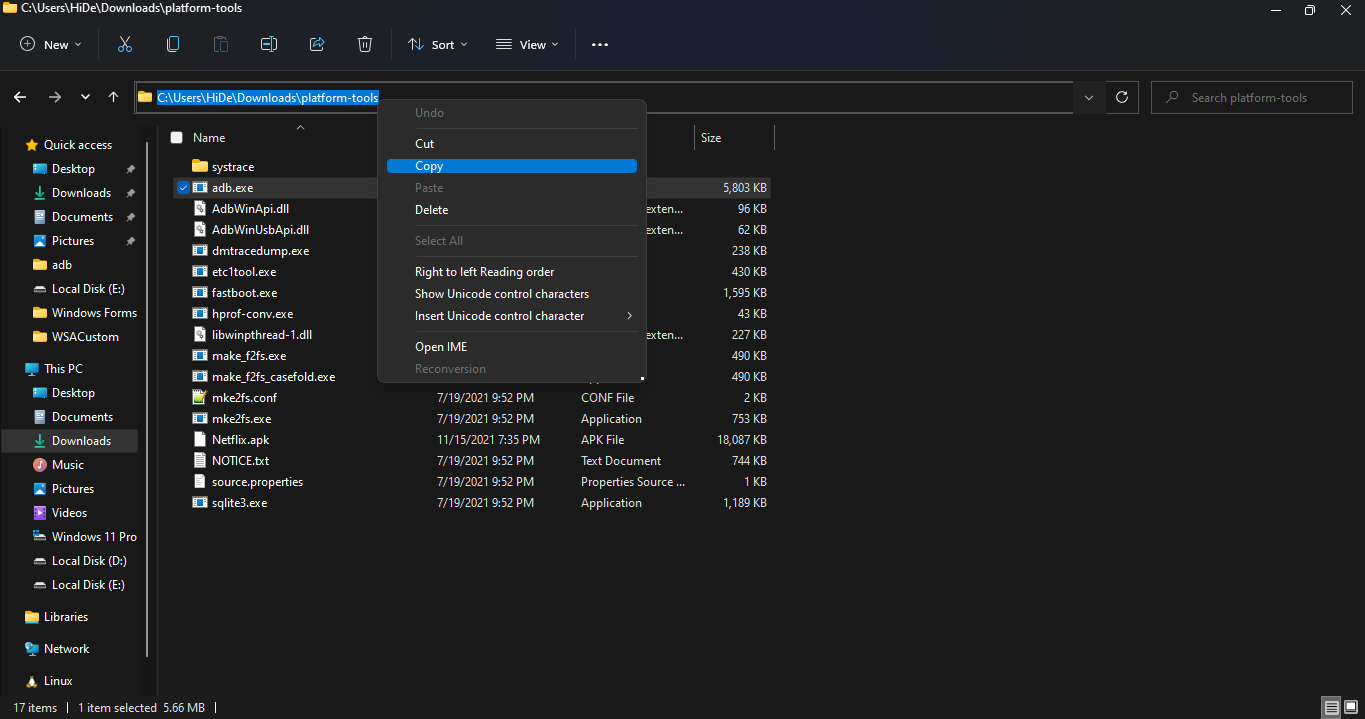
  • Search for Command Prompt in Windows Start Menu and Open it.
  • Type cd "" in the command prompt. Inside those "", paste the copied path by pressing Ctrl + V. The windows should look something like the below screenshot. Then press Enter. 12
  • Now, type adb connect 127.0.0.1:58526 in the Command Prompt Window. Press Enter and wait for the connection.
  • Once connected, type adb install "name.apk" in the Command Prompt. Replace name with the name of the apk file that you want to install and press Enter. After successful install, the installed App will appear in Windows Start Menu. Repeat this step for all the apk files that you want to install and they will appear in Windows Start Menu as well.

Thats it! Thanks for using this Guide. I hope it helped.

@Capcut1
Copy link

Capcut1 commented Mar 3, 2026

https://deltaexcuttor.com/ Maraming naghahanap ng delta executor download upang makuha ang pinakabagong bersyon. Sa pamamagitan ng delta executor new update, mas nagiging maayos ang performance at compatibility ng delta executor sa iba’t ibang device.

@davidhammad
Copy link

thanks for sharing such an amazing article love it

@davidhammad
Copy link

This GitHub gist is a clear, helpful walkthrough for installing Android apps (APK files) on Windows using the Windows Subsystem for Android, which can be useful if you ever want to run apps that aren’t in the Microsoft Store — such as modded apps like WhatsApp Plus, a popular unofficial version of WhatsApp with extra features and customization options. Just remember that installing APKs outside official platforms (especially modded ones like WhatsApp Plus) can carry security risks and may violate the app’s terms of service, so proceed with caution

@queenelizabethuk95-art
Copy link

PSIRA Login allows registered security companies and officers in South Africa to access the Private Security Industry Regulatory Authority online portal. Users can update details, verify registration status, renew certificates, manage compliance, and check training records securely through the official PSIRA website.

@davidhammad
Copy link

Great guide! This step-by-step process makes it so much easier to install Android apps on Windows 11 without an emulator. I also found that using trusted APKs for apps like एफएमव्हाट्सएप ensures smooth installation and better performance. Thanks for sharing!

@jacksonalban28-afk
Copy link

This guide explains the process of installing Android apps on Windows 11 using Windows Subsystem for Android in a very simple and clear way. Many users look for methods to run Android applications without using heavy emulators, and this tutorial provides a helpful solution. People who enjoy editing photos on Android apps like Lightroom Mod APK can also explore additional resources and guides available at https://lightroomzone.com
where detailed information about photo editing tools and APK versions is shared for users who want more advanced features.

Sign up for free to join this conversation on GitHub. Already have an account? Sign in to comment