Skip to content

Instantly share code, notes, and snippets.

Show Gist options
  • Select an option

  • Save averyfreeman/516e4a513d44b04b3860d7190a50bf5f to your computer and use it in GitHub Desktop.

Select an option

Save averyfreeman/516e4a513d44b04b3860d7190a50bf5f to your computer and use it in GitHub Desktop.
Allow remote access of Computer Management to Windows Server Core from RSAT Server Manager

Trying to remotely invoke Computer Management on newly installed Server Core instance invokes warning by default:
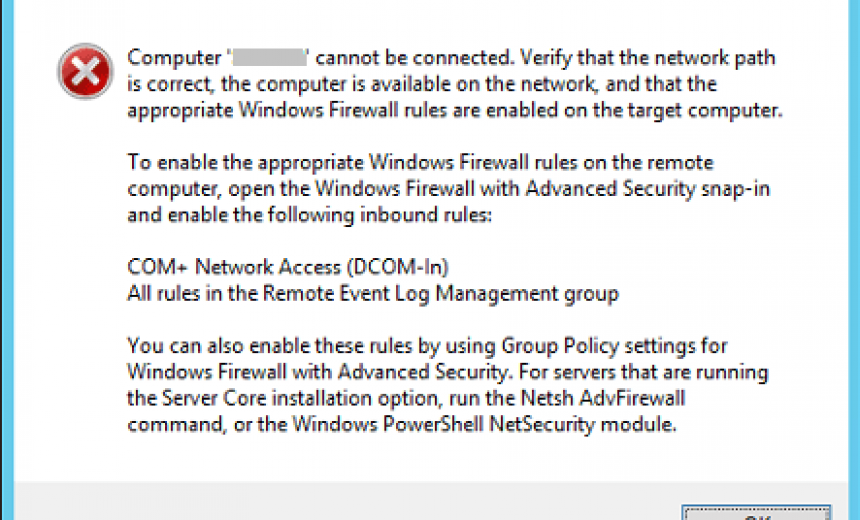
COM+ and WMI closed to you

To enable Computer Management from remote Server Manager instance in Windows Server Core:

open regedit - type regedit, hit enter

navigate: HKEY_LOCAL_MACHINE\SOFTWARE\Microsoft\COM3 switch Com+Enabled DWORD from 0 to 1

or, change the regsitry from the command line:

reg add HKEY_LOCAL_MACHINE\SOFTWARE\Microsoft\COM3 /v Com+Enabled /t REG_DWORD /d /1 /f

(if need to change back, change /d 1 flag to /d 0)

lastly, run these two firewall opening commands:

netsh advfirewall firewall set rule group="Windows Management Instrumentation (WMI)" new enable=yes

netsh advfirewall firewall set rule group="Remote Event Log Management" new enable=yes

If still not connecting with Computer Management, try this:

Set-NetFirewallRule -Name  "WMI-RPCSS-In-TCP" -Profile Domain -Enabled True

Now you should have access to remote Computer Management option in Server Manager

@hamidx64
Copy link

hamidx64 commented May 9, 2025

I have tested all of the above methods and even the methods related to Group Policy, but I still get the above error.

@VentByte
Copy link

I found that in most cases (especially when setting up a fresh system which is not a domain member yet) it is either caused by the network category being set to Public and/or the firewall rules being disabled.

Caution

If the server is reachable over the internet this could be insecure!

To check the current network category you can run Get-NetConnectionProfile. If the NetworkCategory is public, run Set-NetConnectionProfile -InterfaceAlias "Ethernet" -NetworkCategory Private.

Then to enable the firewall groups run the following PowerShell Commands:
Enable-NetFirewallRule -DisplayGroup "Windows Management Instrumentation (WMI)"
Enable-NetFirewallRule -DisplayGroup "Remote Event Log Management"

Those two commands are the PowerShell equivalents to the netsh commands used by OP.

Sign up for free to join this conversation on GitHub. Already have an account? Sign in to comment