Use the following steps to get started with Terraform.
I perform the installation on a Ubuntu 20.04 LTS on AWS.
Create a Virtual Compute Machine as follows:
. go to https://console.aws.amazon.com/ and create an account or login to your account
. go to EC2 > Launch Instance
. in the Search Bar, search for ubuntu
. select Ubuntu 20.04 LTS
🔴 See hint

. choose a General purpose t2 micro instance
. Add tags : vmi - terraform
🔴 See hint

. Review and Launch
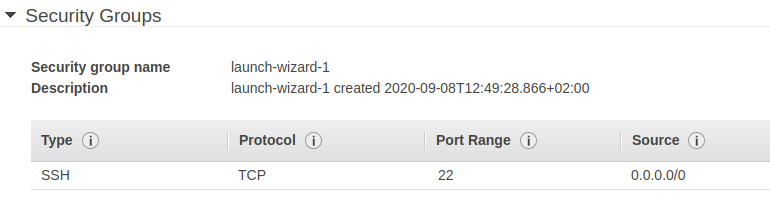
As you can see, by default your instance is reachable from anywhere ovet the Internet using SSH on Port 22.
🔴 See hint
. click 'Launch' > Create a new key pair (key pair name : terraform_aws)
. Download Key pair. Make sure you save the key pair locally before .
. Save the key pair to a folder called 'terraform' using '$ mkdir terraform'
. Click on 'Launch Instances'
. Wait until your EC2 instance is up and running.
🔵 See output

Now that the instance is running on AWS, we will connect to it remotely from our laptop.
Open your Terminal (my OS is Ubuntu 18.04 LTS) :
Ctrl + Alt  +T
$ sudo su
$ cd /home/zaki/Desktop/terraform // go to the folder where you saved the key pair
. Change the permissions to .pem file, ie: $ chmod 400 EC2KP.pem.
$ chmod 400 terraform_aws.pem🔴 See hint

Before we connect to our instance, we will perform an ping to check if the instance is reachable.
$ ping ipv4-public-address_of-the-instance
If you receive packets, this means the EC2 instance is reachable. If not, you may tune the Security group, Internet Gateway, Route table, in order to allow them to be reachable from the Internet. Consider the following resource https://docs.aws.amazon.com/AWSEC2/latest/UserGuide/TroubleshootingInstancesConnecting.html if connection issues to your EC2 instance persist.
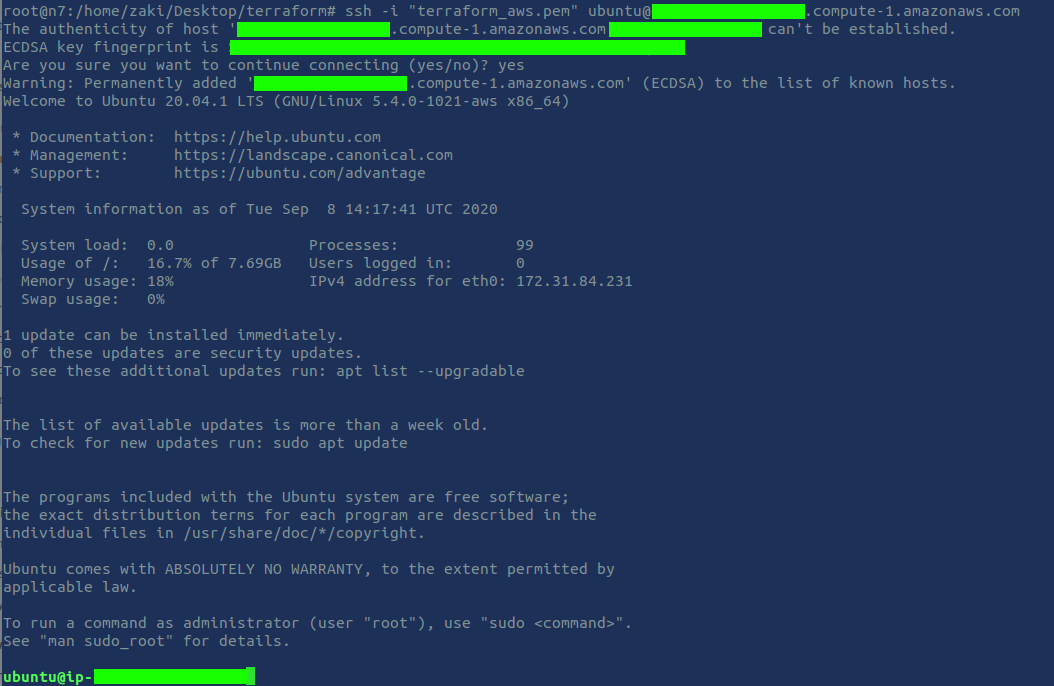
Connect to your EC2 instance remotely using your CLI
Use : $ ssh -i "terraform_aws.pem" ubuntu@ec2-ipv4address.compute-1.amazonaws.com.
Type "yes" when prompted by the CLI
🔵 See output
$ sudo su
$ wget https://releases.hashicorp.com/terraform/0.13.2/terraform_0.13.2_linux_amd64.zip // download the latest available package
$ unzip terraform_0.13.2_linux_amd64.zip
$ mkdir downloads // create a folder named 'downloads' and move the binary in that folder
$ mv terraform downloads
Update your path so you can call Terraform binary from anywhere in the machine
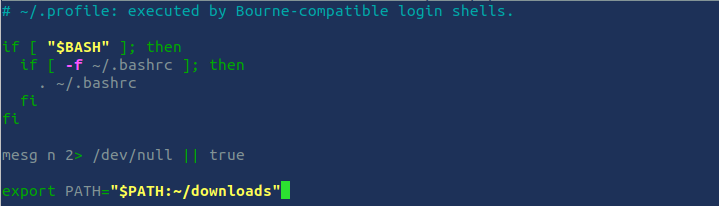
$ nano ~/.profileAdd the following code at the end of the codeblock
export PATH="$PATH:~/downloads"🔴 See hint
To save the file and get back to the CLI, use Ctrl + s then Ctrl + x.
To update your path to the current session, use :
$ source ~/.profileLet's check Terraform version to see if it was correctly installed and that we can call it from anywhere on the machine:
$ terraform --version🔵 See output

Let's finalize the installation of Terraform
Print a colon-separated list of locations in your PATH.
$ echo $PATHMove the Terraform binary to one of the listed locations. Here we use the following location: usr/local/bin.
$ mv ~/Downloads/terraform /usr/local/bin/Close your Terminal window, relaunch a new window (Ctrl + T), go to your terraform folder and reconnect to your EC2 instance once again.
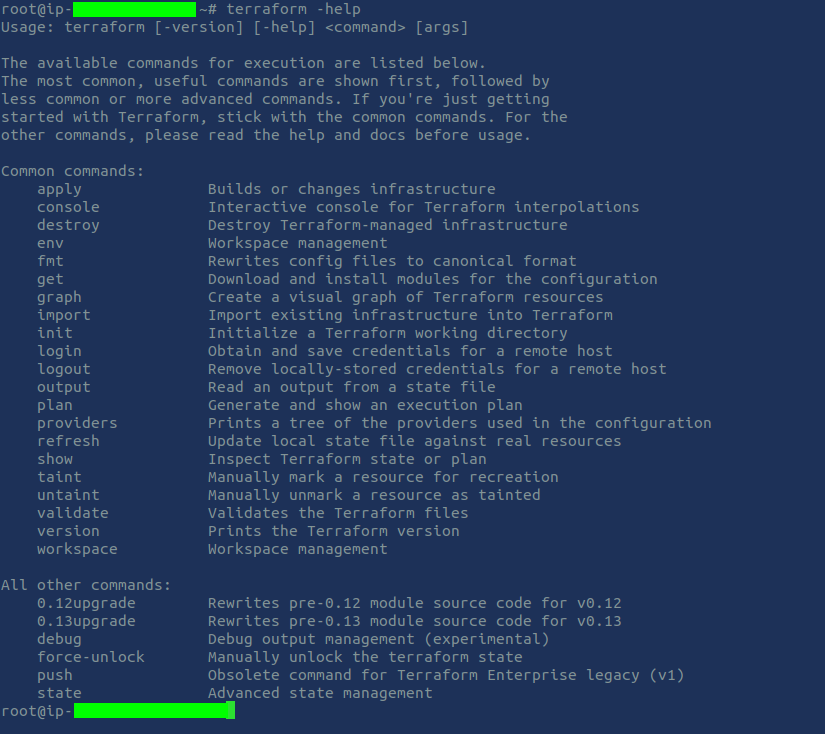
Use the following commands to check if terraform was correctly installed and initialized:
$ terraform -help🔴 See hint
Enable tab completion
If you use either bash or zsh you can enable tab completion for Terraform commands. To enable autocomplete, run the following command and then restart your shell.
$ terraform -install-autocompleteHere you are! You are ready to use Terraform for your IaC projects.