
You or your users are not able to start trivial processes like Taskmgr.exe or regedit.exe without being harrassed by the UAC. You have looked everywhere on Internet and cannot find a solution.
Hopefully this gist will help you out.
There's a few solutions for this problem (I've struggled with many solutions and found the ultimate one).
First of all, if you're having this problem, then you might be in these cases :
- The user have had admin rights (local admin, domain admin...) and then was downgraded to
Standarduser. - The user has been added to a local group, for example "Network configuration operators".
- This was my case because I needed the user to be able to change his network settings, without being the local administrators. By adding him to this group, the problem with the savage UAC started appearing.
Before going to deep in the solutions, we need to check if the user (domain or local) is part of any local group which might cause this problem.
Start a powershell (you don't need admin rights) and paste this :
Get-LocalGroup | ForEach-Object { if ((Get-LocalGroupMember $_.Name | ForEach-Object { $_.Name }) -like "*\$env:username") { $_.Name }}
See my output here, as I said, the user was in the Network configuration operators group (mine is french version) :

So first of all, if you don't need your user to be in these groups (basically anything other that Users group), just remove him from there and your problem will be solved.
If you are in a case similar to mine where you need the user to be in one of thoses groups, follow the solutions.
Important : if you're testing if the solutions work by launching the taskmgr with the CTRL SHIFT ESC keyboard shorcut, it will never work !
Yep, for some obscure windowish reason, the behavior of starting task manager with this shortcut and by starting it any other way (right click taskbar > Task manager, Windows + r > taskmgr, etc..) isn't the same.
So just know this and it will save you hours (I sacrificed for you).
Just use any other way to open the apps which were causing the UAC prompt.
- The first solution is the one you might have seen everywhere but I'll list it here if anyone needs it. We need to check the following Local Security Policy Settings :
Load and unload device drivers: PressWindows+rto open up the run window. Type insecpol.msc. Go here :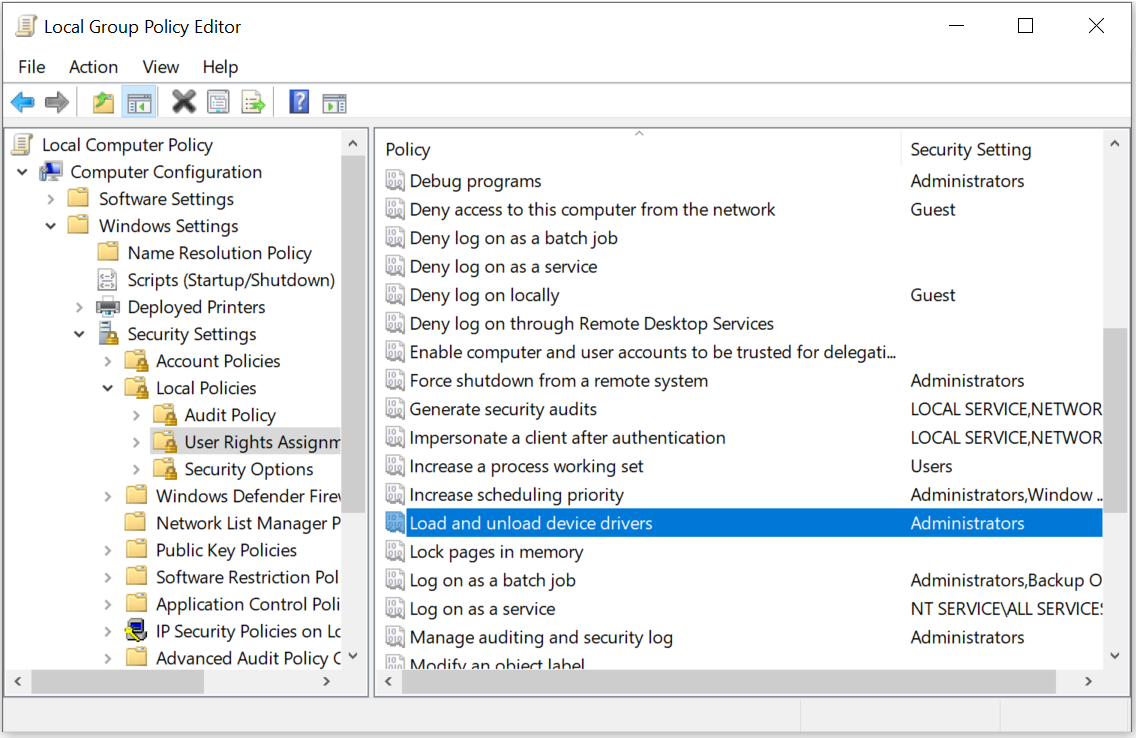 You need to check that the only group here is
 Administrators, so remove all users/groups besidesAdministrators. - Second solution : if you're okay having a special shortcut for one or a few apps. You can create a
.batshortcut with the following contents :cmd /min /c "set __COMPAT_LAYER=RUNASINVOKER && start "" C:\App Path (you can use spaces).exe". Here's a demo :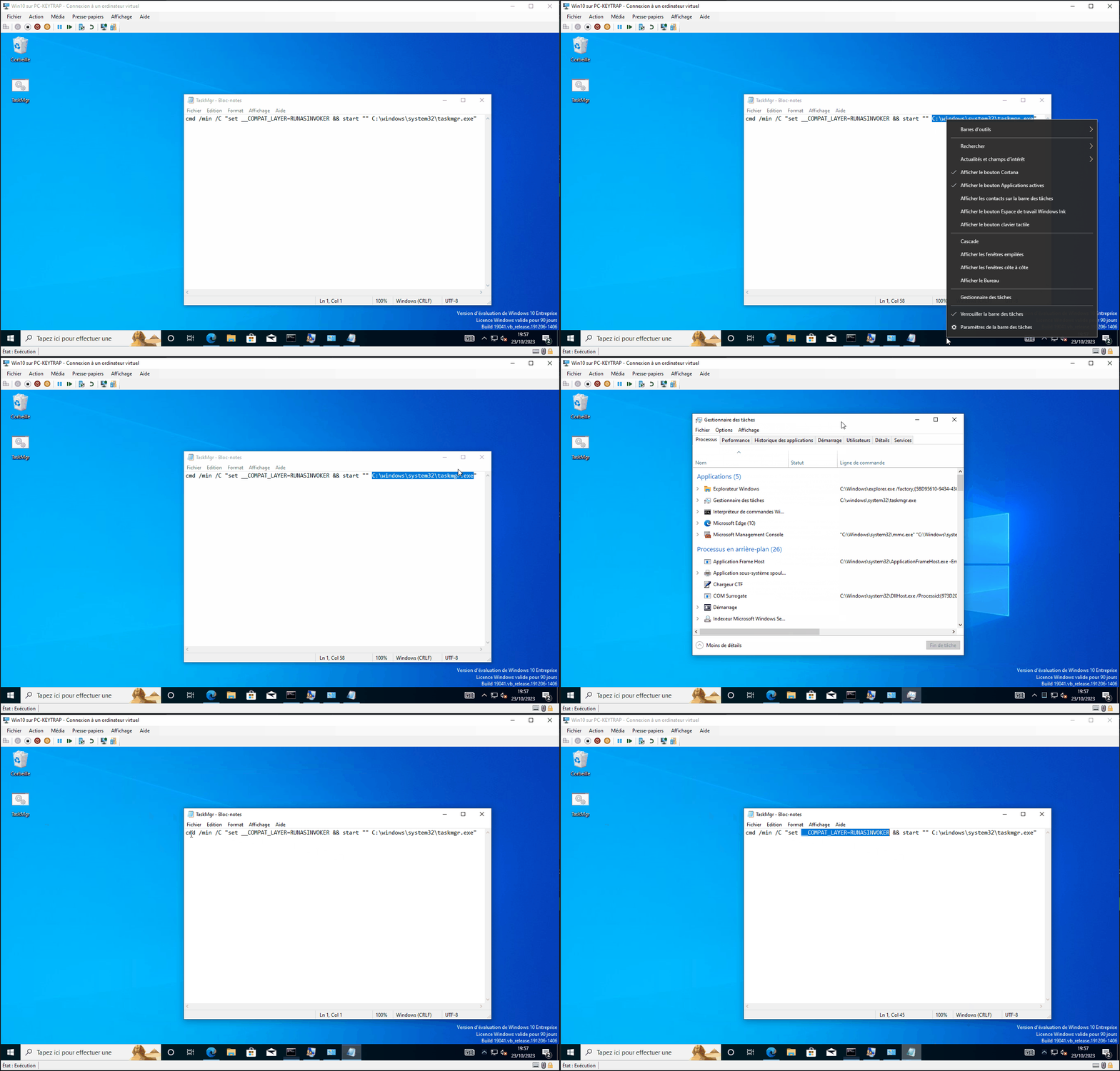
- The last solution is for when you don't want custom shortcuts and want to apply the 'normal' behavior to all apps.
- Let's set this environment variable globally for the user's session.
Windows+r>rundll32 sysdm.cpl,EditEnvironmentVariables. Add new variable to the user's variables.- Name:
__COMPAT_LAYER. Value:RunAsInvoker(not case sensitive).
- Name:
- Demo :
- Let's set this environment variable globally for the user's session.
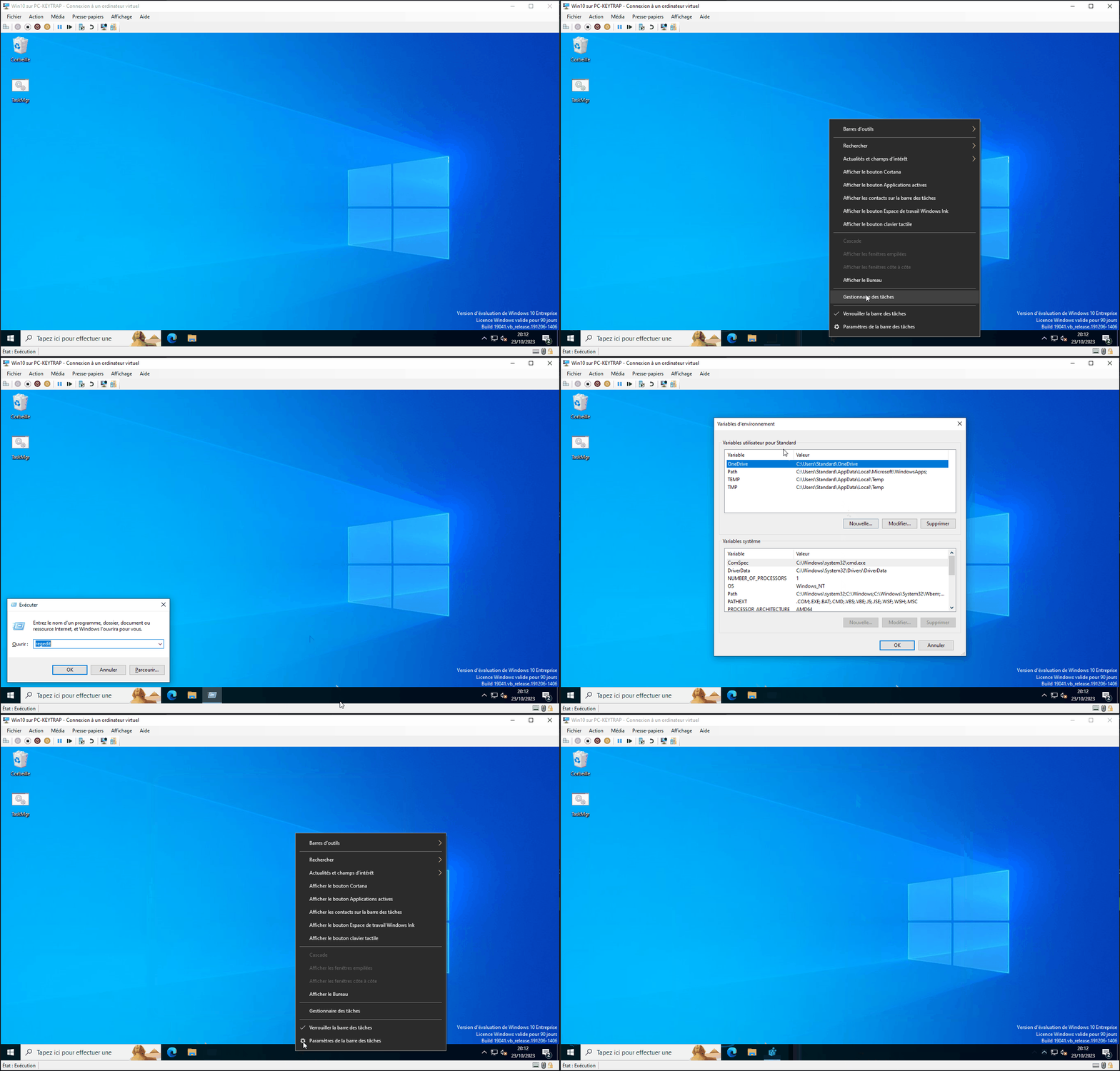
Hopefully you have found peace.