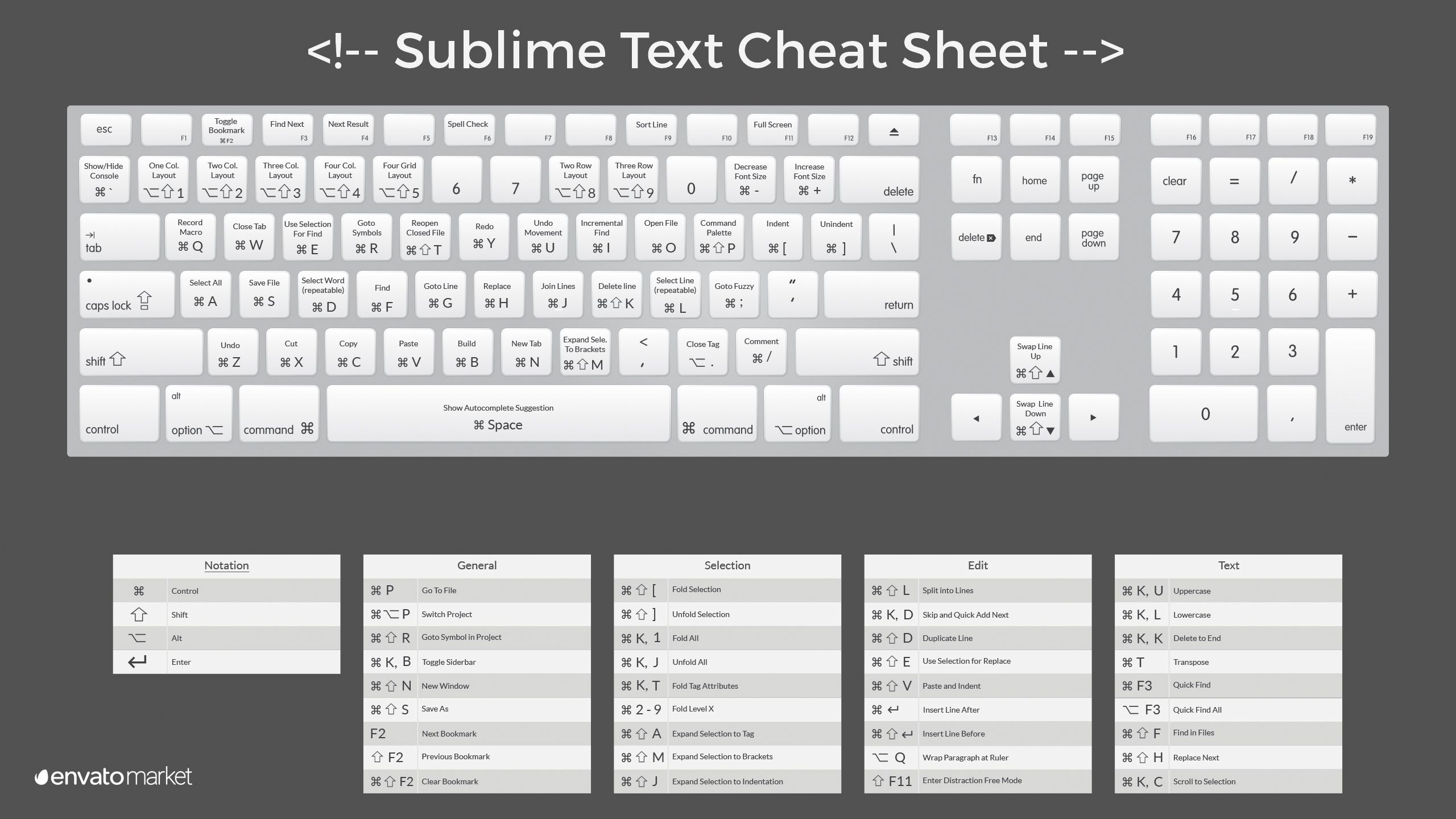
| Name/Link |
Description |
| Additional PHP Snippets |
Collection of additional snippets contributed by the PHP community |
| All Autocomplete |
Extend Sublime autocompletion to find matches in all open files of the current window |
| Auto File Name |
Plugin that autocompletes filenames |
| Bootstrap 3 Autocomplete |
A Sublime Plugin complete with Bootstrap 3 snippets |
| Bootstrap 3 Snippets |
|
| Clickable URLs |
Underlines URLs in Sublime Text, and lets you open them with a keystroke |
| Color Highlighter |
To underlays selected hexadecimal colorcodes (like "#FFFFFF", "rgb(255,255,255)", "white", etc.) with their real color |
| DocBlockr |
Simplifies writing DocBlock comments in Javascript, PHP, CoffeeScript, Actionscript, C & C++ |
| Editor Config |
Helps developers maintain consistent coding styles between different editors |
| Emmet |
To improves HTML & CSS workflow |
| Git |
For some git integration into sublime text |
| GitGutter |
To see git diff in gutter |
| Goto Documentation |
To jump to documentation for the current keyword |
| Horizontal Scroll¹ |
To scroll horizontally in Sublime Text with your keyboard |
| HTML-CSS-JS Prettify |
HTML, CSS, JavaScript and JSON code formatter |
| Indent XML |
For reindenting XML and JSON files |
| Insert Callback |
Inserts a node-style JavaScript callback function, and ensures that the call's trailing semicolon is inserted |
| Material Color Scheme |
Syntax theme based off of the Material Design color palette |
| Material Theme |
Material Theme, the most epic theme for Sublime Text 3 |
| Package Control |
Package manager that makes it exceedingly simple to find, install and keep packages up-to-date |
| PhpDoc |
CodeDoc is a Sublime Text 2/3 plugin to speedup writing documenting comments |
| SetiUI-Icons-Sublime |
Seti UI icons for any ST3 theme |
| SideBarEnhancements |
Enhancements to Sublime Text sidebar. Files and folders |
| SQLTools |
Your swiss knife SQL for Sublime Text (http://code.mteixeira.me/SQLTools/) |
| Sublime CodeIntel |
Code intelligence plugin ported from Open Komodo Editor to Sublime Text |
| Sublime Linter |
Inline lint highlighting |
| Sublime Linter - PHP |
This linter plugin for SublimeLinter provides an interface to php -l. It will be used with files that have the “PHP”, “HTML”, or “HTML 5” syntax |
| Trailing Spaces |
Highlight trailing spaces and delete them in a flash |
| Xdebug Client |
Xdebug debugger client integration for Sublime Text |
| Sublime REPL |
Run an interpreter inside ST2 (Clojure, CoffeeScript, F#, Groovy, Haskell, Lua, MozRepl, NodeJS, Python, R, Ruby, Scala, shell or configure one yourself) |
{ "keys": ["ctrl+tab"], "command": "next_view" },
{ "keys": ["ctrl+shift+tab"], "command": "prev_view" },

{ "keys": ["ctrl+pagedown"], "command": "next_view_in_stack" },
{ "keys": ["ctrl+pageup"], "command": "prev_view_in_stack" },
To improve the plugin Horizontal Scroll¹
{ "keys": ["alt+x"], "command": "scroll_width", "args": {"amount": 30, "by_character": true} },
{ "keys": ["alt+z"], "command": "scroll_width", "args": {"amount": -30, "by_character": true} }
Loosely ordered with the commands I use most towards the top. Sublime also offer "full documentation": http://www.sublimetext.com/docs/2/.
| Shortcut |
Description |
| Ctrl+C |
Copy current line (if no selection) |
| Ctrl+X |
Cut current line (if no selection) |
| Ctrl+⇧+K |
Delete line |
| Ctrl+↩ |
Insert line after |
| Ctrl+⇧+↩ |
Insert line before |
| Ctrl+⇧+↑ |
Move line (or selection) up |
| Ctrl+L |
Select line (repeat to select next lines) |
| Ctrl+D |
Select word (repeat select others occurrences in context for multiple editing) |
| Ctrl+M |
Jump to closing bracket for current code, repeat to jump to opening bracket |
| Ctrl+⇧+M |
Select all contents of the current brackets (curly brackets, square brackets, parentheses) |
| Ctrl+KK |
Delete from cursor to end of line |
| Ctrl+K+⌫ |
Delete from cursor to start of line |
| Ctrl+] |
Indent current line(s) |
| Ctrl+[ |
Un-indent current line(s) |
| Ctrl+⇧+D |
Duplicate line(s) |
| Ctrl+J |
Join line below to the end of the current line |
| Ctrl+ / |
Comment/un-comment current line |
| Ctrl+⇧+/ |
Block comment current selection |
| Ctrl+Y |
Redo, or repeat last keyboard shortcut command |
| Ctrl+⇧+V |
Paste and indent correctly |
| Ctrl+Space |
Select next auto-complete suggestion |
| Ctrl+U |
Soft undo (somehow undoes your movements; it jumps to your last change before undoing it when you repeat this command) |
| Ctrk+⇧+L |
To position the cursor in all selected lines |
| Shortcut |
Description |
| Ctrl+P |
Quick-open files by name in your project (doesn't seem to need an actual project set up, it just searches in the directories around the currently-opened file |
| Ctrl+R |
Goto symbol (functions and classes) in the file. Same as Ctrl+P, then type @ |
| Ctrl+; |
Goto word in current file. Same as Ctrl+P, then type # |
| Ctrl+G |
Goto line in current file. Same as Ctrl+P, then type : |
| Shortcut |
Description |
| Ctrl+⇧+P |
Command prompt |
| Ctrl+KB |
Toggle side bar |
| Shortcut |
Description |
| Ctrl+F |
Find |
| Ctrl+H |
Replace |
| Ctrl+⇧+F |
Find in files |
| Shortcut |
Description |
| Ctrl+⇧+t |
Open last closed tab (just like in your browser) |
| Ctrl+PgDn |
Cycle down through open tabs, cycle up with Ctrl+PgUp |
| Ctrl+⇆ |
Cycle through last tabs (repeat to go back further in history) |
| Shortcut |
Description |
| Alt+⇧+2 |
Split into two columns |
| Alt+⇧+1 |
Revert to single column |
| Alt+⇧+5 |
Grid (4 groups) |
| Ctrl+[1,2,3,4] |
Jump to "group" (pane) |
| Ctrl+⇧+[1,2,3,4] |
Move file to specified group |
| Shortcut |
Description |
| Ctrl+F2 |
Toggle bookmark |
| F2 |
Next bookmark |
| ⇧+F2 |
Previous bookmark |
| Ctrl+⇧+F2 |
Clear bookmarks |
| Shortcut |
Description |
| Ctrl+KU |
Upper case |
| Ctrl+KL |
Lower case |
| Ctrl+KV |
Paste history |