
BTT Pi uses AllWinner H616 CPU, and on https://github.com/bigtreetech/CB1 system, w1-gpio kernel module does not work.
However, there is an excellent custom module https://github.com/pstolarz/w1-gpio-cl
The following steps were tested on CB1 v2.3.3.
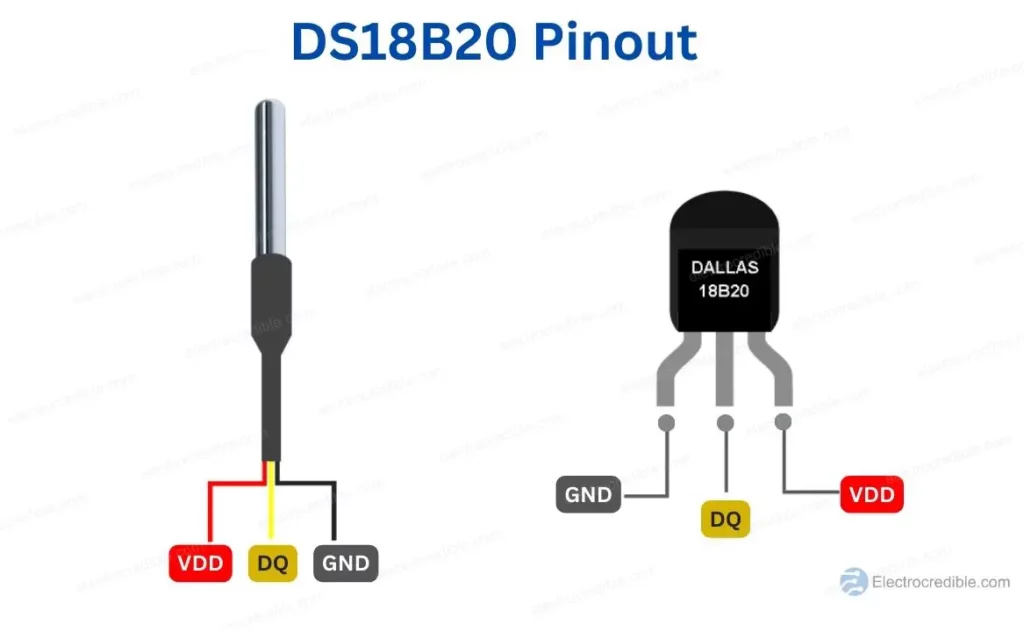
Connect sensor VCC pin to 3.3V, GND to GND (obviously), and signal pin to selected GPIO. I used PC7, since it corresponds to the default w1 pin location on the Raspberry Pi header.
Don't forget to add a pull-up resistor between 3.3V and the signal pin. A 4.7 kOhm resistor is the recommended value.
NEVER connect anything while the printer is powered on!
I did not try parasitic power mode, and I don't recommend it. Klipper will shut down on subsequent read errors, and it might ruin your prints randomly. I did not have any problems with the standard 3-wire connection yet.
The easiest way is to compile it directly on the device. The official guide needed to be modified slightly.
sudo apt-get install build-essential bc bison flex libssl-devsudo apt-get install linux-headers-current-sun50iw9git clone https://github.com/pstolarz/w1-gpio-cl.gitcd w1-gpio-clln -s /lib/modules/`uname -r`/build/include/linux w1makesudo make install
Optionally, you can install it using DKMS
sudo dkms add .
sudo dkms install w1-gpio-cl/1.2.2
where 1.2.1 is the latest w1-gpio-cl release version.
For details, read the original README.
The w1-gpio-cl module does not accept pin names; instead, it needs pin index. To list all available pins, run
sudo cat /sys/kernel/debug/pinctrl/300b000.pinctrl/pinmux-pinsFind your preferred pin (note that some pins might not work). I used PC7
pin 71 (PC7): UNCLAIMED
Now you can configure module options
echo 'options w1-gpio-cl m1="gdt:71"' | sudo tee /etc/modprobe.d/w1-gpio-cl.confTry loading the module manually
sudo modprobe w1-gpio-clVerify that the module is loaded
lsmod | grep w1You should see something like
w1_therm               28672  0
w1_gpio_cl             16384  0
You can verify the output of the dmesg for errors.
To load the module during boot, run
echo 'w1-gpio-cl' | sudo tee /etc/modules-load.d/w1-gpio-cl.confReboot and verify that the module is properly loaded and working.
See https://www.klipper3d.org/Config_Reference.html#ds18b20-temperature-sensor
Find out connected sensor addresses
sudo ls /sys/bus/w1/devices/You will see output like
28-011319f769fe w1_bus_master1
With that address, add a Klipper config section like this
[temperature_sensor my_sensor]
sensor_type: DS18B20
serial_no: 28-011319f769fe
sensor_mcu: CB1
Note that sensor_mcu must be set to the host, which is CB1 by default.
After restarting Klipper, your new temperature sensor should appear in the Mainsail/Fluidd UI automatically.



Awesome guide! Thank you for this.