Git is the most widely used version control system (VCS) meaning that it tracks changes to files including what changed, who changed it, and why they changed something. Using the command line of computers terminal you can use git commands to control the versions of local files. We will go over these commands later. Using the proper git workflow can ensure a reliable history of your files. Git primarily works locally on your computer and does not need to access a server to retrieve history making it a quicker option in terms of version control systems.
This section introduces and gives a quick description of each command.
-
git init:
The command
git initinitialize git in the folder you choose to initialize. This will create a hidden .git folder where a history of your files will be stored. This .git folder can also be called the local repository or "repo" for short. -
git add:
The reason behind the
git addcommand is to stage any changes you've made. Most first-time git users are confused by this concept but it proves to be extremely helpful when working with multiple files. The staging area is a great place to organize chunks of a project before commiting any changes. -
git commit:
After changes have been staged
git commitwill save then with a commit message attached. These changes will be stored locally and only changes that have been staged will be commited to memory. The-mflag allows you to inscribe a message on the commit and its use is highly recommended to organize different historical time stamps of any changes. -
git diff:
When a file is being tracked you can use the
git diffcommand to visually see any changes that have been made since the last clean working tree. + will show any additions made and - will show anything that has been removed from the last version of a file.
polsieira [git_and_gh_practice] (master)$ git diff
diff --git a/hobbies.txt b/hobbies.txt
index bb0dd75..cdf9605 100644
--- a/hobbies.txt
+++ b/hobbies.txt
@@ -1,3 +1,6 @@
 Skiing
 Hiking
-Traveling
+Biking
+Cooking
+Piano
+Eating
-
git status:
If at any time you lose track of what files have been modified or what branch you are on
git statuswill display quick information to remind you. As shown below it displays the current branch, the modified files, and the stage files.
Your branch is up to date with 'origin/master'.

Changes not staged for commit:
  (use "git add <file>..." to update what will be committed)
  (use "git checkout -- <file>..." to discard changes in working directory)

	modified:   hobbies.txt

no changes added to commit (use "git add" and/or "git commit -a")
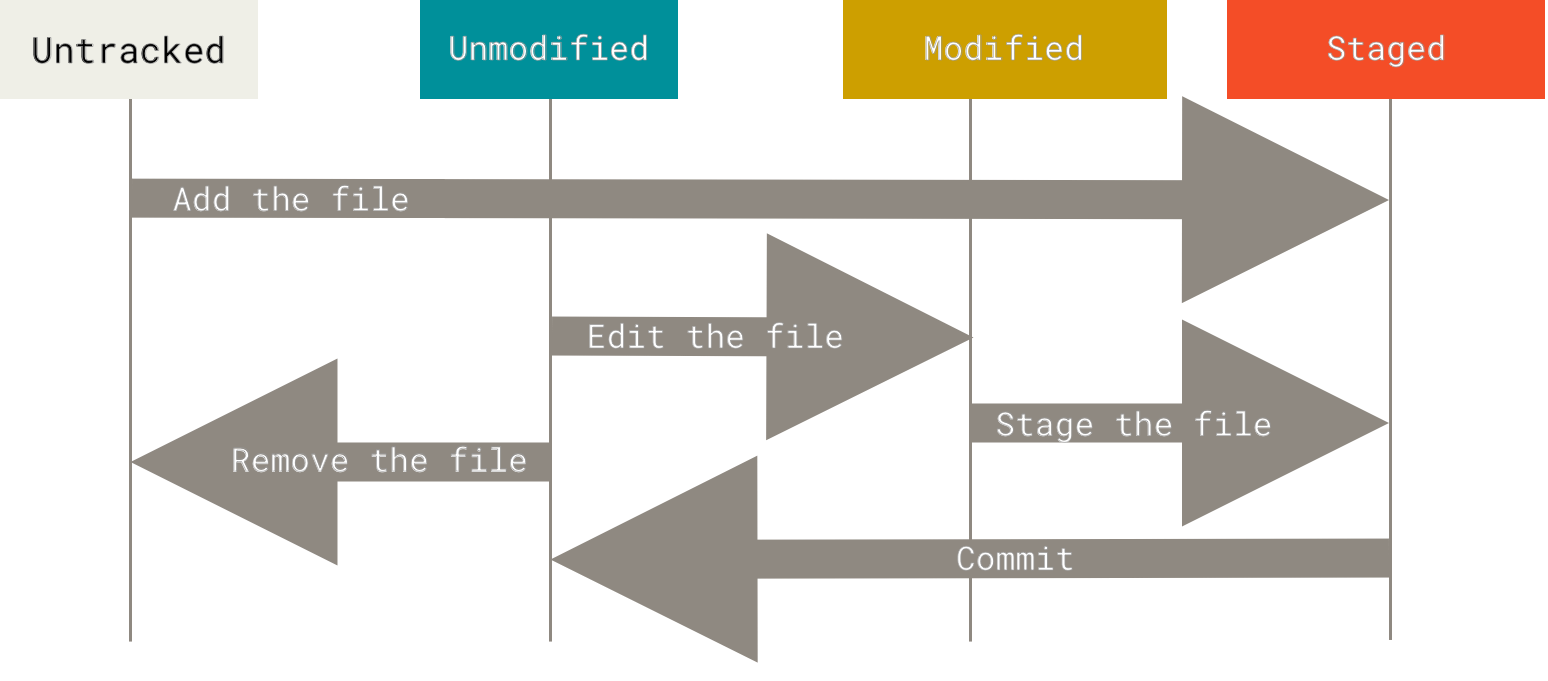
For this section we will be referencing the image below. Imagine opening a working directory in your terminal where git hasn't been initialized.
-
Untracked file
Initially all files within a folder are untracked. Using
git initwill initialize the folder and create a local repo. Then changes are ready to be added.
polsieira [git_example] $ git init
Initialized empty Git repository in /Users/polsieira/git_example/.git/
polsieira [git_example] $ git status
On branch master

No commits yet

Untracked files:
  (use "git add <file>..." to include in what will be committed)

	git_help.txt

nothing added to commit but untracked files present (use "git add" to track)
-
Staged file
To begin tracking the file add it to the staging area. This moves it from being untraked to staged as shown in the image below.
polsieira [git_example] $ git add git_help.txt
polsieira [git_example] $ git status
On branch master

No commits yet

Changes to be committed:
  (use "git rm --cached <file>..." to unstage)

	new file:   git_help.txt
-
Commited (Unmodified file)
Now the file is being tracked but everything is unmodified because none of the files have been changed yet. Once commited the working tree is clean and there are no changes to the file since the last version was saved to the repository.
git commitincludes a message stating this is the intial commit and shows that one file has been changed.
polsieira [git_example] $ git commit -m "Initial commit"
[master (root-commit) eb728f7] Initial commit
 1 file changed, 0 insertions(+), 0 deletions(-)
 create mode 100644 git_help.txt
polsieira [git_example] (master)$ git status
On branch master
nothing to commit, working tree clean
-
Modified file
Now say some text is added to the file, the file is now modified and git recognizes these changes. The
git diffcommand m can be used to visually inspect the changes.
polsieira [git_example] (master)$ echo "The git diff command will show you any changes made since the last clean working tree" >> git_help.txt
polsieira [git_example] (master)$ git status
On branch master
Changes not staged for commit:
  (use "git add <file>..." to update what will be committed)
  (use "git checkout -- <file>..." to discard changes in working directory)

	modified:   git_help.txt

no changes added to commit (use "git add" and/or "git commit -a")
polsieira [git_example] (master)$ git diff git_help.txt
diff --git a/git_help.txt b/git_help.txt
index e69de29..c96a839 100644
--- a/git_help.txt
+++ b/git_help.txt
@@ -0,0 +1 @@
+The git diff command will show you any changes made since the last clean working tree
-
Staged file
You can now stage any changes again and repeat the process to save another version of your file.
-
Commited (Unmodified) file
Once added, you can commit these changes and continue this cycle until the final version of the file. Then a history of all versions will be stored in git.