
Most of programs will not accept an email using just @localhost as domain.
So, edit /etc/hosts file to make the domain localhost.com point to your machine, including this content to the file:
127.0.0.1 localhost.com
Fedora/CentOS/RHEL: sudo yum install postfix
Ubuntu: sudo apt-get install postfix
MacOSX: Postfix is already installed by default.
-
During postfix install process, the configure text dialog will display five options:
General type of mail configuration: No configuration Internet Site Internet with smarthost Satellite system Local only -
Select "Local Only".
-
For the domain name, use the default suggested and finish the install.
Enabling this, you can use any email address ending with "@localhost" or "@localhost.com".
Example: here, my unique account is rael@localhost.com. But while testing systems, I can use any address like joe@localhost.com, foo@localhost.com, etc, because all will be redirected to rael@localhost.com
- If not exists, create file /etc/postfix/virtual:
sudo nano /etc/postfix/virtual - Add the following 2 lines content, replacing
<your-user>with your Unix user account:
@localhost <your-user>
@localhost.com <your-user>
- Save and close the file.
- Configure postifx to read this file:
- Open /etc/postfix/main.cf:
sudo nano /etc/postfix/main.cf - And check if this line is enabled, or add it if not exists:
virtual_alias_maps = hash:/etc/postfix/virtual
- Open /etc/postfix/main.cf:
- Activate it:
sudo postmap /etc/postfix/virtual - Reload postfix:
sudo systemctl restart postfix - If you're under non
systemddistro, like Ubuntu 14.04, service restart command probably is:sudo service postfix reload
Ubuntu: sudo apt-get install thunderbird
- Skip the welcome screen (click in the button to use existing accounts);
- Click in the Settings button at top right (similar to Chrome settings) then click on Preferences > Account Settings
- Under Account Actions choose "Add Other Account"
- Select "Unix Mailspool (Movemail)"
- Your account will be
<your-user>@localhost(of course, replace<your-user>with your user account). Don't use<your-user>@(none), use<your-user>@localhost - Ingoing and Outgoing server will be:
localhost - Restart (close and reopen) Thunderbird.
- This step have two purposes: test your install and stop the
Unable to locate mail spool file.message. - Using Thunderbird, send new email to
<your-user>@localhost, replacing<your-user>with your user account - Click on "Get Mail"
- Test catch-all: send new email to
averagejoe@localhost - Click on "Get Mail" and you'll see the message at
Inbox.




Hello there, thanks for the tutorial.
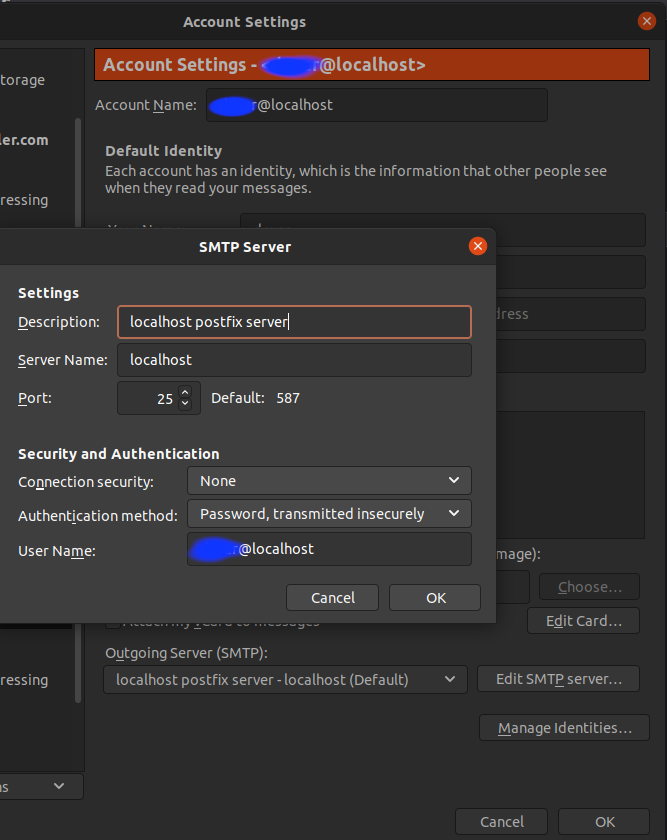
I have an issue... I setup everything as needed, port is 25... outgoing server is
localhost, I can send the mail without troubles, to me, but whenever I try to get the mail, it says "Unable to locate mail spool file" - no matter what I do... is there anything I can do... thanks in advance!EDIT:
I tried doing it on a virtual machine and it worked without any troubles. Thanks a lot for the guide, also, had to use port 25 on the outgoing server. Thanks.