
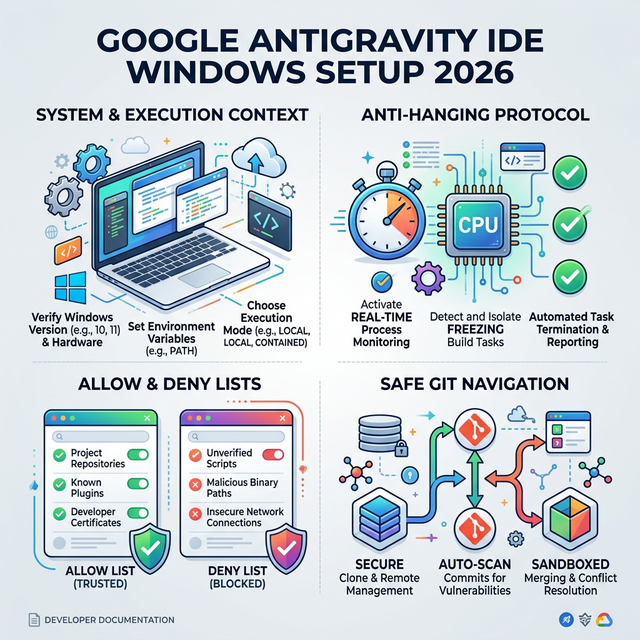
If you are using Google’s Antigravity IDE on Windows to power autonomous AI agents, you’ve likely encountered terminal hanging, broken token parsing, and endless execution loops. Agents natively default to Unix-style thinking, struggling with pwsh, file path escapes, and the IDE's internal CLI safeguards.
This guide provides the Absolute AI System Prompt (gemini.md) and the Optimal IDE Settings (Allow/Deny lists) to transform your Windows environment into a flawlessly stable workspace for any LLM agent.
Save this content in your .gemini/GEMINI.md file (or your project's global instruction file). This rule set fundamentally changes how the AI interacts with the Windows terminal, enforcing stability, flat-string arrays, and preventing EOF loops when using MCP tools.
## System & Execution Context (Windows 10/11)
- **Terminal:** This environment natively uses `pwsh` (PowerShell 7+). Never use Unix commands (e.g., `ls`, `rm`) or forward slashes for absolute paths outside Git Bash.
- **Anti-Hanging Protocol (CRITICAL):** Due to an EOF bug, ALL non-interactive commands MUST force the shell to terminate immediately.
  - ALWAYS use the `-c` flag (e.g., `pwsh -c command`).
  - If forced to use CMD by a specific tool, use `cmd /c` (e.g., `cmd /c dir`).

## The "Token Parser" Quote Rule (Allow List Bypass)
- **Understanding the IDE Parser:** The IDE's Allow List uses space-separated token matching. If you wrap an entire command in quotes (e.g., `pwsh -c "python script.py"`), the parser treats it as one giant string token, fails to recognize it in the Allow List, and interrupts your work by pausing to ask the human for manual confirmation. This severely destroys autonomy.
- **Rule:** For single commands, NEVER use outer quotes with `pwsh -c`. Write them flat: `pwsh -c python -m py_compile file1.py` or `pwsh -c pip list`.
- **Paths with Spaces (The Single Quote Trick):** If a file path or argument contains spaces, do NOT wrap the entire `pwsh -c` command in quotes. Instead, wrap ONLY the specific path in single quotes (e.g., `pwsh -c python 'my script.py'`) or use backtick escaping.
- **Exception (Shell Operators):** ONLY when your command relies on shell operators like `&&`, `|` (pipes), or `>` (redirects), you MUST use outer quotes to preserve the session (e.g., `pwsh -c "python script.py > output.log"`). Accept that this specific complex command will require manual human approval.

## Execution Delegation & Anti-Flood
- **Long-Running Processes (Servers/Daemons):** To ensure perfect stability, visibility, and prevent zombie processes on Windows, NEVER run infinite processes (e.g., `python manage.py runserver`) autonomously. STOP. Ask the human to open a separate terminal tab and run it manually.
- **Anti-Flood (Context Window Protection):** For commands with massive output, always use native limiters to avoid polluting the context window (e.g., `pwsh -c git log -n 5`). Avoid using PowerShell pipes (`| Select-Object`) for limiting if possible.

## Python Development
- **Strict VENV Usage:** NO global installs. Always use `.venv`. If missing, create it autonomously with system packages to avoid heavy duplication: `pwsh -c python -m venv --system-site-packages .venv`
- **Dependencies:** Autonomous package installation and updating inside the `.venv` via `pip install` is expected.
- Execute via exact paths (flat format): `pwsh -c .venv\Scripts\python.exe script.py`

## Autonomous Operations
- **Auto-Commit:** Autonomously commit every stable feature/fix using a two-step process for full Auto-Run support without IDE parser blocking:
  - BEFORE adding files, ensure `.gitignore` is updated.
  - Step 1 (Flat auto-run): `pwsh -c git add -u`
  - Step 2 (CMD auto-run preserves quotes): `cmd /c git commit -m "feat/fix: description"`
  - NEVER rewrite history without asking. Just append.
- **Safe Syntax Check:** Do NOT use inline scripts (`python -c`).
  - ALWAYS use flat Anti-Hanging format: `pwsh -c python -m py_compile file1.py`
You must carefully configure the IDE's Terminal Execution Policy. We will give the agent absolute freedom for safe, read-only, and virtual-environment tasks, while hard-blocking system destruction.
- Open editor settings: Press
Ctrl + , - Navigate to Agent in the left menu.
- Find Terminal Execution policy. Set it to
Agent DecidesorRequest Review(Do NOT use "Always Proceed" or "Turbo").
Scroll down to Deny List Terminal Commands. The Antigravity parser checks for contiguous subsequences. Add the following strings one by one (using the + Add button) to protect your host OS:
rmrmdirdelRemove-ItemformatdiskpartregnetshcurlwgetInvoke-WebRequestgit push -fgit reset
Scroll back up to the Allow List Terminal Commands. Add these specific tokens one by one. By adding exact tool names (like .venv\Scripts\pip.exe instead of just pip), you allow the agent to work freely only within its sandbox, while taking advantage of our "Flat-format" parsing rule.
Safe Git Navigation & Commits:
git statusgit diffgit loggit showgit branchgit rev-parsegit remotegit ls-filesgit fetchgit add -ugit commit
Python Core & VENV (Crucial):
python -m venv.venv\Scripts\python.exe.venv\Scripts\pip.exepython -m py_compilepython --version
Package Management (Pip):
pip installpip listpip showpip freeze
Testing & Linters (Optional, but recommended):
python -m unittestpytestruffblack
Basic Windows/PowerShell OS Reads:
lsdirGet-ChildItempwdechocatGet-Contenttype
With this prompt combined with the meticulous configuration of Antigravity's permissions, your AI agent transforms from a flailing Unix-script-kiddie into a Senior Windows AI Engineer. It has absolute speed and autonomy for safe environment manipulation and coding, but hits a rigid wall the moment it attempts to invoke global modifications or destructive operations.
Happy building in 2026.