
Before getting started with react-sketch-app you should have all the following tools installed and ready to go:
-
A terminal program (if you are not very comfortable using the command line, this guide should teach you most of the basic commands to get up and running)
-
Sketch
-
A Text editor (Atom or Sublime Text are straightforward choices with which to start and both have many of tutorials available online)
-
A recent version of NodeJS/NPM (If you type
node -vin your terminal and do not see a version number go ahead and install it from the official Node.js® website, the button with "LTS" should be exactly what you need) -
Git (If you type
git --versionin your terminal and do not see a version number go ahead and install git for your operating system from the git website)
Assuming all your tools are installed/working, we're ready to get started by getting react-sketchapp onto your machine
-
Open a terminal and change the directory into a folder where you want react-sketchapp to live (if you're not sure or don't really care, an easy choice is to put it right on your desktop. You can move your terminal inside there by typing
cd ~/Desktop& verify you're inside that directory by typingpwdto see the full path.cd ..will move you back one folder) -
You now can clone or download react-sketchapp to the directory from the step above by copying the following command into your terminal:
git clone https://github.com/airbnb/react-sketchapp.gitNote: This should take a couple seconds and once it's finished you can type ls -1 in your terminal to see an alphabetized list of all the folders & react-sketchapp should be one of them
- Now that
react-sketchappis on your machine move the terminal into the folder you just cloned down by typing the following command:
cd react-sketchapp- From the
react-sketchappdirectory, move into the examples folder and then move into the basic-setup folder by typing the following commands:
cd examples
cd basic-setup
(Again you can see the terminal's current location by typing pwd and also list all the files inside that directory by typing ls -1)
- Install the dependencies/helper-files by typing the following command:
npm install(If you see wall of text zoom down your screen that means npm is working as expected)
-
While it's installing, take a break from the terminal and open Sketch and select "New Document" (note that Sketch should be open to an empty file before running any of the examples)
-
Open the folder
react-sketchappin your text editor and drill down to react-sketchapp -> examples -> basic-setup -> src -> my-command.js (no need to do anything with it yet) -
Once the
npm installcommand completes start the example by entering the following command inside the basic-setup folder:
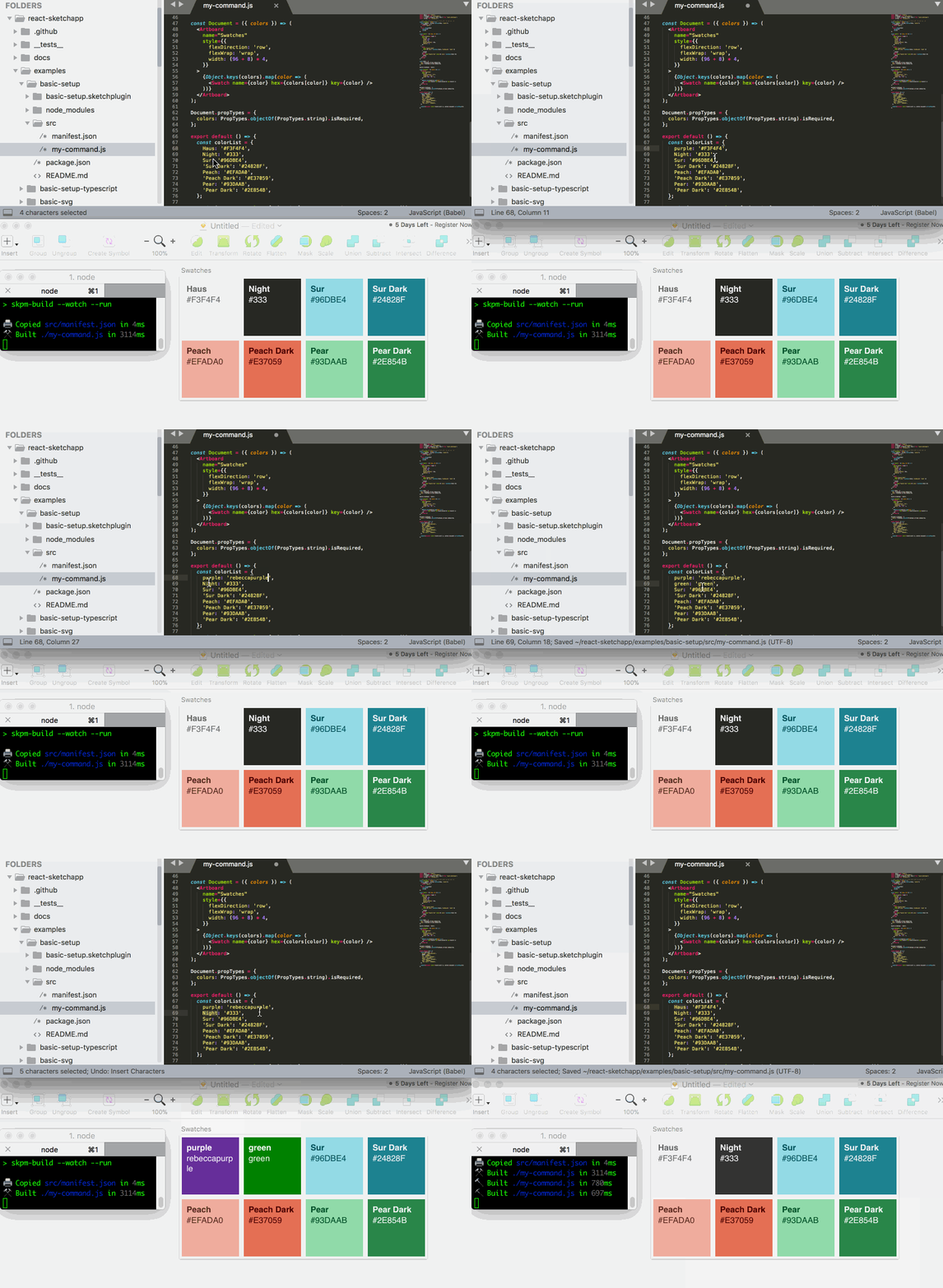
npm run renderIf everything is working correctly when you edit the file my-command.js and save, Sketch should automatically reflect your changes:
-
Press CTRL-C to exit the tool and use
cd ..to move back into the examples folder -
See that folder or review the list at the top of this page for other examples to try
-
For each example from its directory you should run
npm installand thennpm run render
That should get you started-- now that you're up and running see the docs folder for advanced usage of react-sketchapp
| Scenario | The fix |
|---|---|
When I run npm run render I see an error that says something about 'Looks like we can't find Sketch.app.'"" |
- Tell the tool where Sketch is located on your machine - You'll need to find where Sketch.app is located on your system - You can get the full path to Sketch by dragging and dropping Sketch into your terminal from whatever folder Sketch.app is located in to find the full path) -Ex. If your username is "bongo" and Sketch.app is located in your Downloads folder, you would type the following (single line): echo "sketchPath: /Users/bongo/Downloads/Sketch.app" > ~/.skpmrc-Replace "/Users/bongo/Downloads" with your full path to Sketch.app |
When I run npm run render there is an error about "TypeError: null is not an object (evaluating 'context.document.currentPage')" |
- CTRL-C to shut off the tool and open Sketch to an empty file BEFORE re-running npm run render from the folder |
| Sketch isn't updating when I change the code! | - Make sure you ran npm install and npm run render in the example folder- Verify you're editing the correct example file - Verify that the terminal is inside the correct example directory, press CTRL-C to turn off the tool if it's on and enter pwd to make sure the terminal is in the right place - Open a new document in sketch and re-run npm run render |